
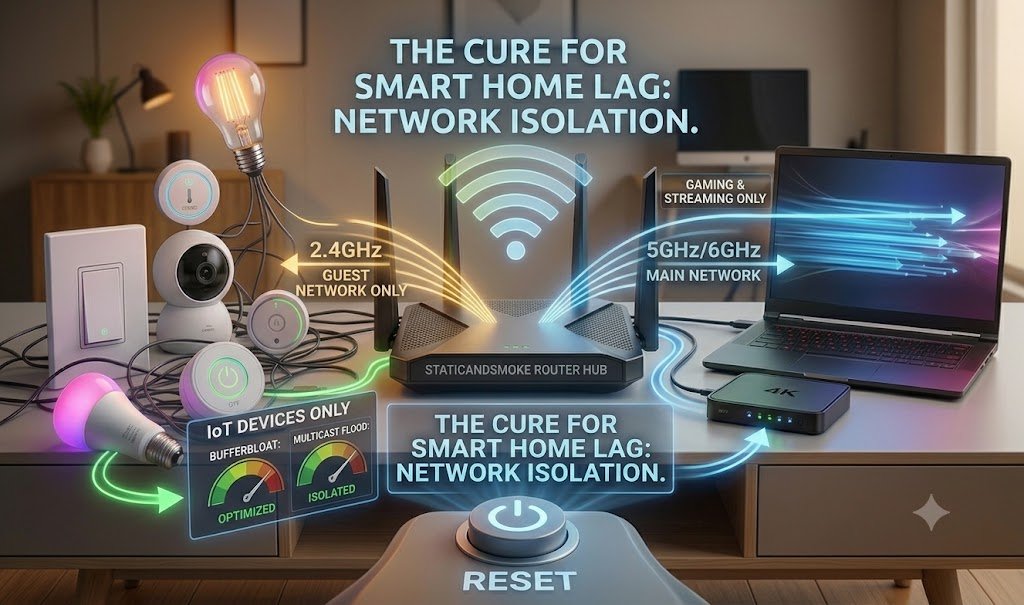
Fix smart home lag permanently by eliminating airtime congestion on your legacy 2.4GHz frequency band. While cheap smart plugs and light bulbs rely on older wireless standards (802.11b/g/n), they consume massive amounts of broadcasting time to transmit tiny packets of data. This forces high-speed devices like gaming PCs and streaming TVs to wait in a processing queue, resulting in high latency, severe bufferbloat, and random connectivity drops
The Invisible Bottleneck Behind Your Smart Home Lag
To the modern homeowner, paying a premium for a 1-Gigabit fiber line feels like a bulletproof insurance policy against internet slowdowns. You assume that a massive data pipe means absolute speed across every screen in the house. Yet, after installing a handful of smart switches, a dozen cheap color-changing light bulbs, a couple of smart plugs, and a few wireless security cameras, you will inevitably trigger a severe case of smart home lag that causes your high-end network to start crawling.
Websites take seconds to resolve, your Zoom calls freeze during critical moments, and your online games spike with unpredictable latency. You run a speed test, and it tells you your bandwidth is perfectly fine. So where is the ghost in the machine? What’s causing your smart home lag?
The crisis isn’t a lack of raw speed coming into your house; it is an invisible traffic jam taking place entirely in the local airspace of your living room. Your smart home gadgets have triggered the 2.4GHz airtime apocalypse.
The Tractor and the Sports Car: Understanding Airtime Fairness
To understand why a $15 smart plug can bring down a $300 gaming router causing smart home lag, you have to look at how wireless routers allocate their broadcasting time.
Think of your router’s 2.4GHz frequency band as a single-lane highway.
- The Sports Car: A modern laptop or a premium smartphone is a sports car. It uses advanced, high-speed Wi-Fi protocols to fly down the highway, dump its data, and clear the lane in fractions of a millisecond.
- The Tractor: A budget smart plug or light bulb is a tractor moving at 5 mph. Because these devices are engineered to be as cheap as possible, they utilize legacy, decades-old wireless standards (strictly 802.11b/g/n).
Wireless routers operate on a principle called Airtime Fairness. To prevent faster devices from completely starving slower legacy equipment, the router allocates an equal chunk of broadcasting time to every device demanding it. When your smart bulb needs to tell the cloud that it is turned “off,” it takes the wheel. Because its wireless card is incredibly slow, it spends a massive amount of time hogging the lane to transmit a tiny, microscopic packet of data.
While that cheap bulb is crawling down the highway, your high-speed laptop, gaming console, or streaming TV is forced to sit idling in the driveway, waiting for its turn to speak. This background processing backlog is exactly what causes smart home lag—a critical build-up of data packets that spikes your ping, triggers severe bufferbloat, and completely tanks your real-time performance.
The Multi-Device Math: Modeling Packet Collisions
When your smart home scales from five devices to thirty or forty, the network doesn’t just cause smart home lag linearly; it degrades exponentially. Wireless local area networks (WLANs) utilize a protocol called Carrier Sense Multiple Access with Collision Avoidance (CSMA/CA). Before any device transmits data, it must listen to the airwaves to ensure no one else is speaking.
If two devices attempt to transmit at the exact same instant, a data collision occurs. Both packets are instantly corrupted, forcing the router to drop them entirely and order both devices to wait a randomized period before trying again.
The mathematical probability of a data packet collision (Pc) inside an unmanaged, dense wireless cell can be modeled using a standard Poisson distribution:
Pc = 1 – e^(-2 * L * T)
Where:
- L represents the aggregate packet transmission rate across all your smart home nodes.
- T represents the vulnerable slot duration of the wireless medium.
As you continuously flood your household airspace with uncoordinated, chatty IoT devices sending status updates, the value of L spikes. Consequently, Pc rapidly approaches 1. Your router becomes trapped in a permanent loop of dropping corrupted data and processing re-transmissions. Your devices are screaming over one another, creating an unbreakable wall of self-inflicted radio frequency noise.
To Stop Smart Home Lag: Building an Architectural Sandbox
Throwing money at a newer, more expensive consumer router will rarely solve this problem if you dump the exact same messy device list right back onto it. The ultimate fix requires structural separation. You must build a digital quarantine zone that keeps your premium data streams completely isolated from your low-tier smart home components.
Step 1: Access Your Router’s Gateway
Open a web browser on a computer connected to your home network. Enter your router’s default gateway IP address into the URL bar. Common defaults include:
192.168.1.1192.168.0.110.0.0.1
Log in using your administrator credentials (if you’ve never changed these, look for the sticker on the physical bottom of your router casing).
Step 2: Fix Smart Home Lag with a Guest Network
Locate the Wireless Settings or Advanced Network tab and look for the Guest Network toggle.
- Enable a secondary Guest Network SSID and name it something distinct (e.g.,
Static_Smoke_IoT) to isolate the traffic. - Assign a secure password specifically for this layout to prevent future smart home lag across your primary household communication channels.
Step 3: Sever Local Resource Privileges
This is the most critical step for both performance optimization and cybersecurity. Look for a checkbox labeled “Allow guests to see each other” or “Access local network resources.”
- Uncheck this box. By disabling local access, you completely sandbox your smart devices. If a vulnerable smart light bulb is ever compromised by malware, the attacker is trapped inside that single isolated sandbox and cannot scan or access your private computers, network-attached storage (NAS) drives, or personal phones.
Step 4: Lock the Frequency Bands
Configure your main network SSID to broadcast exclusively on the 5GHz and 6GHz bands. These wide, multi-channel highways should be reserved purely for devices that demand raw speed and flawless real-time latency (like gaming rigs, work laptops, and 4K streaming sticks).
Conversely, lock your new IoT Guest Network to broadcast strictly on the 2.4GHz band. Smart devices have no use for 5GHz speeds, and their long-range signals are structurally optimized for the wall-penetrating physical traits of the 2.4GHz wave spectrum anyway.
Test Your Network for Smart Home Lag: IoT Congestion Simulator
Use our custom tool below to calculate exactly how much stress your current device inventory is placing on your wireless router’s processing core, and find out if your setup is heading toward an administrative crash.
IoT Router Stress & Airtime Analyzer
Reclaiming the Local Spectrum
By structurally dividing your local spectrum, you eliminate the single-lane highway problem entirely. Your legacy smart plugs can yell, drop packets, and crawl along their isolated 2.4GHz guest track all day long without ever bleeding into or delaying the pristine, high-throughput data paths running across your main network.
By structurally dividing your local spectrum, you eliminate the single-lane highway problem entirely. Stop blaming your internet service provider for bad latency when the issue is simply unoptimized local hardware configuration. Take control of your router’s administrative architecture, isolate your legacy hardware, clear the airwaves, and banish smart home lag from your property for good.
🛠️ What should we break down next? Let us know your suggestions in the comments—or drop us a line directly through our Contact Page!